Universal links guide
Ometria sends personalised emails with URLs that point back to your website. In order to open these URLs inside your application, make sure you follow this guide.
Pre-requisites
First, make sure you have an SSL-enabled Ometria tracking domain set up for your account. You may already have this for your email campaigns, but if not ask your Ometria contact to set one up, and they should provide you with the domain.
Enable the Associated Domains entitlement for your application
To do this, select your project in Xcode, and go to Targets > Your application Target > Signing & Capabilities, and add the Associated Domains capability.
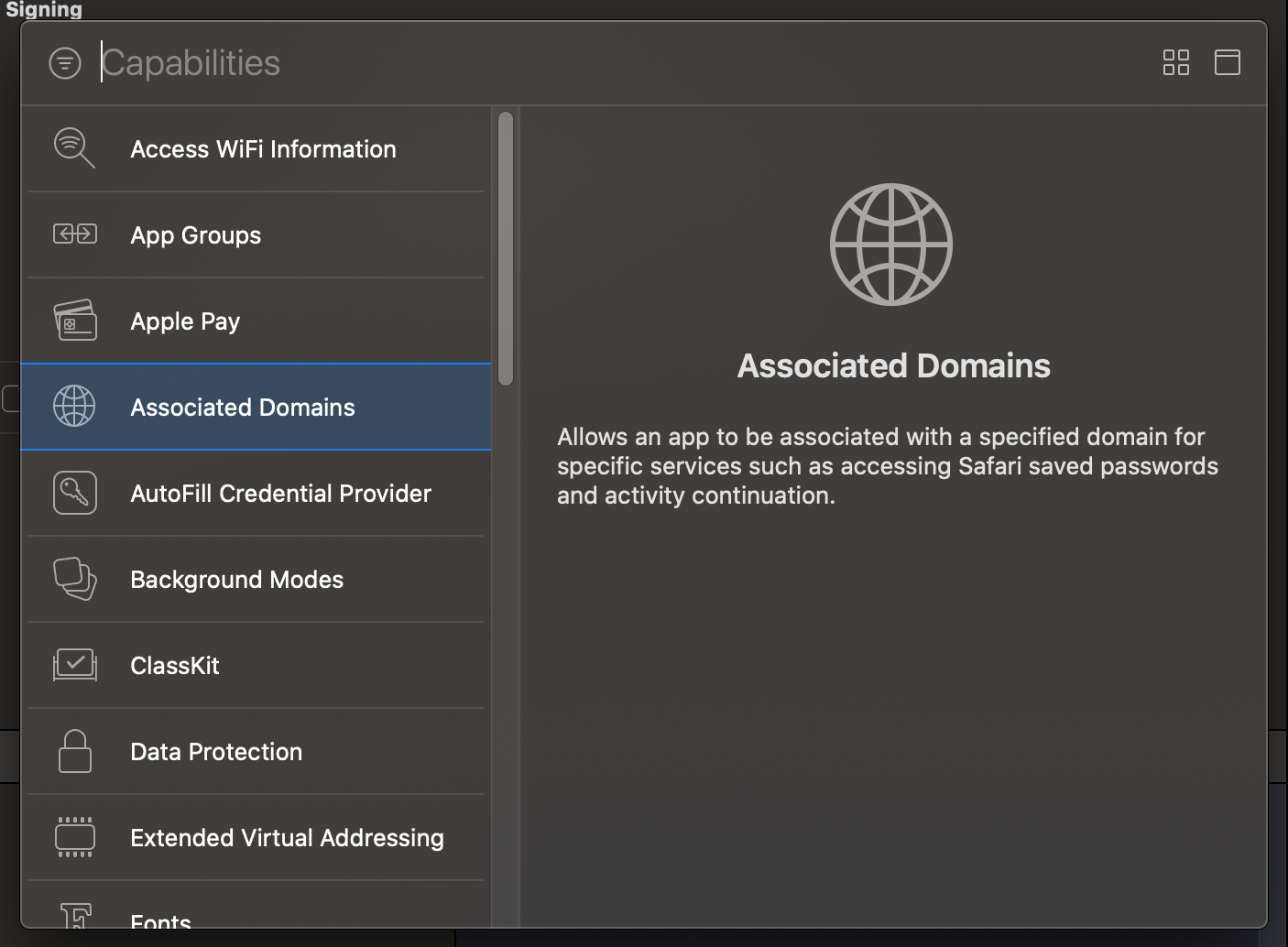
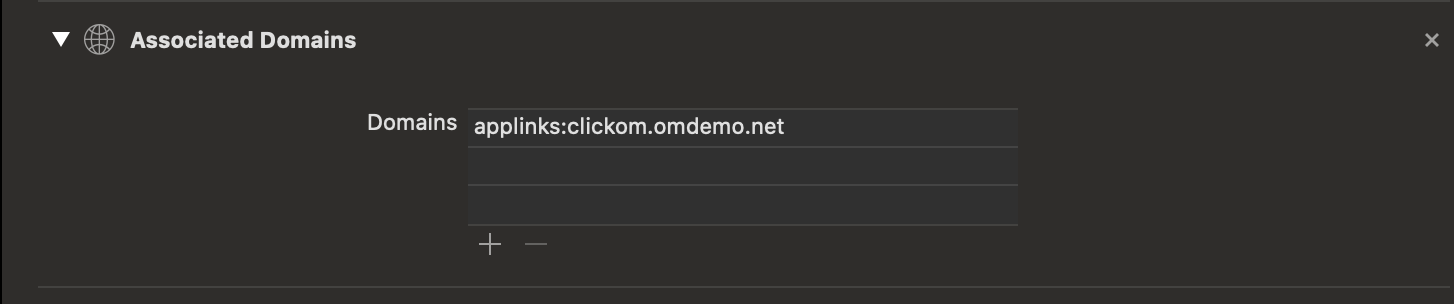
Once enabled, input your Ometria tracking domain as below.
This will ensure that when your customers click on links in Ometria emails, your app opens instead of the browser.
Note: This does not associate your website's domain with the app, only the tracking domain.
Create an apple-app-site-association file and send it to your Ometria contact.
The apple-app-site-association file is used to create a relationship between a domain and your app. You can find out more about it here but for the purpose of this guide we will go with the most basic example which should look like this:
{
    "applinks": {
        "details": [
            {
                "appID": "<Your_team_identifier>.<Your_bundle_id>",
                "paths": ["*"]
            }
        ]
    }
}
Save it and name it "apple-app-site-association" (notice that no extension has been used, although it's just a normal JSON file). Then send it to your Ometria contact - we will upload this for you so that it will be available behind the tracking domain.
Once you are done, you should be able to successfully open your app by selecting a URL received from Ometria.
Process universal links inside the app
The final step is to process the URLs in your app and take the user to the appropriate sections of the app. Note that you need to implement the mapping between the URLs you send in push notifications or email deep links and the screens of your app. The structure of these URLs is typically shared between your website and the application.
See also Linking push notifications to app screens.
If you are dealing with normal URLs pointing to your website, you can decompose it into different path components and parameters. This will allow you to source the required information to navigate through to the correct screen in your app.
However, Ometria emails contain obfuscated tracking URLs, and these need to be converted back to the original URL before you can map the URL to an app screen. To do this, the SDK provides a method called processUniversalLink, which follows redirects — ensuring that the email link tracking works — and returns a link to your website (the original link).
You can also specify a domain for this function. If you do, the function will stop following redirects once it reaches a link with that domain. This is useful when you have internal redirects you don't want to follow at this point.
func application(_ application: UIApplication, continue userActivity: NSUserActivity, restorationHandler: @escaping ([UIUserActivityRestoring]?) -> Void) -> Bool {
    if let url = userActivity.webpageURL {
        // you can check here whether the URL is one that you can handle without converting it back
        Ometria.sharedInstance().processUniversalLink(url) { (url, error) in
            if let url = url {
                // you can now handle the retrieved url as you would any other url from your website
            } else {
                // an error may have occurred
            }
        }
        return true
    }
    return false
}
Warning: The method above runs asynchronously. Depending on the Internet speed on the device, processing time can vary. For best results, you could implement a loading state that is displayed while the URL is being processed.
If you have done everything correctly, the app should now be able to open universal links and allow you to handle them inside the app.
Deep link opened
Based on the implementation status of interaction with notifications that contain deep links, this event can be automatically tracked or not.
The default implementation automatically logs a deep link opened event every time the user interacts with a notification that has a deep link. This is possible because we know that the default implementation will open the link in a browser.
If you chose to handle deep links yourself (using the guide for Handling interaction with notifications that contain URLs), then you should manually track this event when you have enough information regarding the screen (or other destination) that the app will open.
trackDeepLinkOpenedEvent(link: String, screenName: String)